For the third task of this module I had to make an UI button for one of my game prototypes for another one of modules, Game Design and Prototyping using the application Adobe Illustrator. The button I wanted to make for this task was a start button to be used by the player to start the the mainGame scene within Unity or HTML.
It’s important to note that the button made for this task did not end up being used for any of my prototype games as it didn’t fit into any of the themes I implemented when making them or weren’t necessary since a number of the games didn’t include a start game scene made within Unity.
The Design Process…
I first started by opening up Adobe Illustrator and creating a new project, I set the pixel resolution to 1920×1080 to have a reference to the size of the screen that will be used for my game prototypes. When in the editor I enabled the transparency grid in the view tab so that the application was easier to work with when making my button
In the colour selection of the window, I set the appearance’s stroke to 3pt for the outline of any shapes I would draw next within the project where I would draw a rectangle using the rectangle tool in the tool menu with the width set to 450px and height to 150px since this was a 3:1 ratio. I then curved the corners with an absolute round curve at a radius of 35° since this was the curve that looked more aesthetically pleasing for the start button
The next step was to add depth into the shape using the 3D and Materials menu in which I altered the preset to front and enabled Bevel where I set the bevel’s width to 12% and the height to 55% which is what gave the front preset appear 3D and giving it depth. Afterwards I added the Larch Wood material to make the button more interesting and unique.
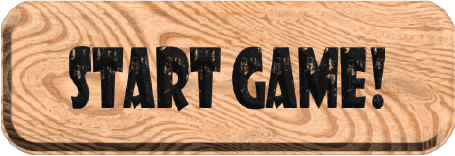
I then placed text over the button with the material Painted Wood Parquet Cube and chose the font style Showcard Gothic since this made the text stand out and feel part of the button.
Exporting
Since this project included two different layers select the asset within the Asset Export menu which included both shape and text assets so that they are attached within the file. This file type had to be saved as a PNG to include transparency within the areas outside the shape’s corners
Pros and Cons
The first good aspect of the image is that it includes text to illustrate the button’s function within the game world which is an important element of UI within games.
Another aspect that is good about this button is that the text and and shape are both made of the similar materials to make them feel connected. This is important as it makes the button look natural when used in a game or any different artform.
The only con of this image is that there is an area at the bottom of the button where it is not shaded effectively. To fix this the bevel height would have to be increased to add more shadow within this area. Other than that I couldn’t find any other issues with this UI button for my game prototypes.