Link to my game: Asteroids
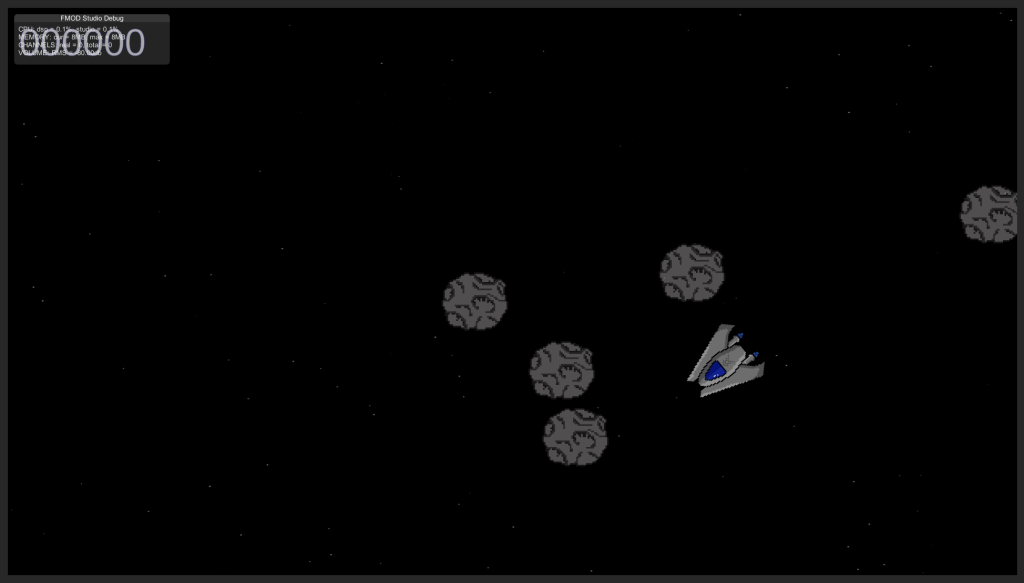
The second to last game prototype for my assignment is a top down shooter game. As usual, this prototype was made using Unity alongside integrated FMod for introducing game audio into the prototype. Game audio was also edited using Adobe Audition.
A top down shooter is a game where the player controls a character from an overhead experience and must destroy incoming enemies before they collide with the player character. Some examples of top down shooter games are Star Valor by Rafael Burgos and Synthetik: Legion Rising by Flow Fire Games.
When choosing a theme for my game, I didn’t want to stray too far from the tutorial I used’s design, Star Tanks. This was to spend less time on art since that’s an area where I’m somewhat on. So I decide to keep the theme of space but the player is a spaceship that has to destroy incoming asteroids, hence the name I gave it, Asteroids. It was only until writing this that I realised that there is already an arcade top down shooter named Asteroids by Atari, therefore making my prototype seem like a direct clone of the original.
Scripting
All of the scripts in the game are implemented from the tutorial videos.
One of the differences between this prototype and my previous two is that Asteroids have two scenes within the game , the Main Menu and the Main Game.
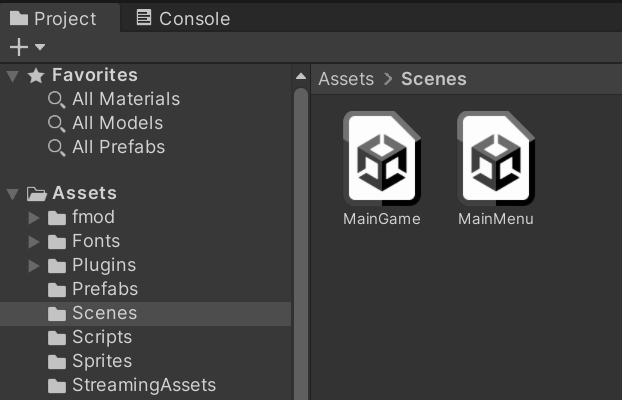
The first script which is the only script used within the Main Menu scene is scr_menuButton.
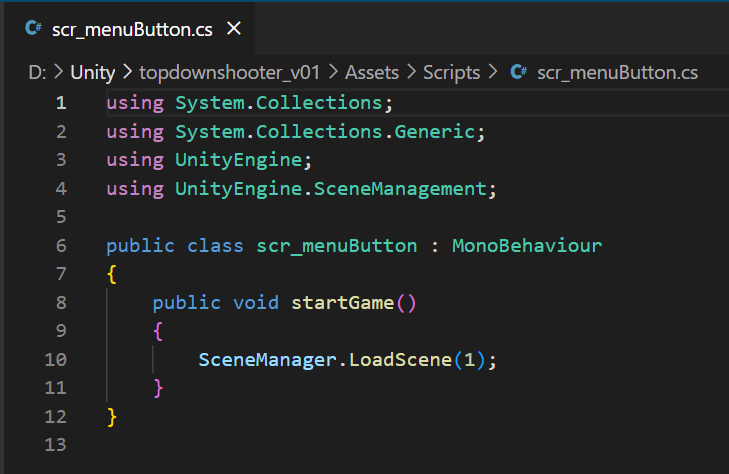
This very simple script allows the player to proceed to the next scene, Main Game. The script will switch scenes whenever the startGame function is activated which I have set to when the game object, startButton is clicked.
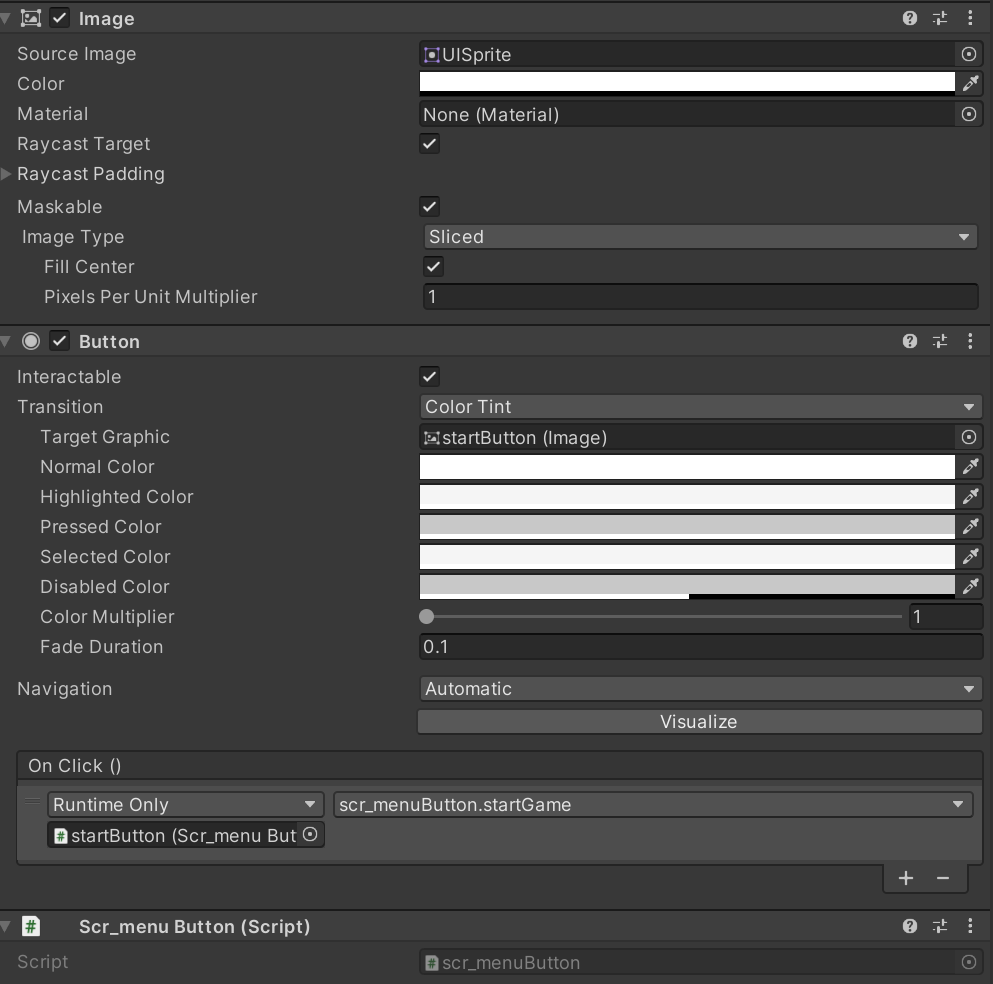
This button was made transparent so that it can still be clicked by the player but it won’t cover the game view.
The following scripts are used within the scene, Main Game:
The second script implemented into Asteroids is scr_playerMovement and is assigned to the Player game object.
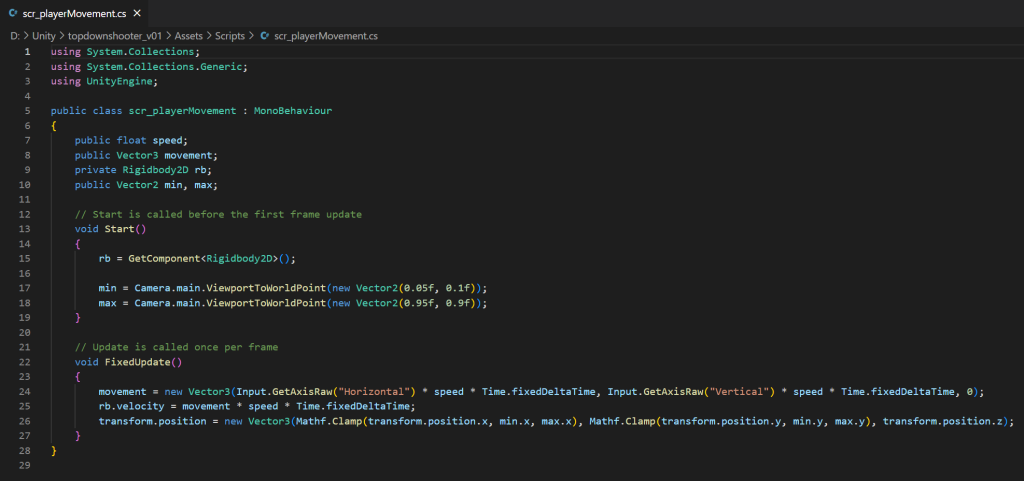
The first purpose of this script is to allow the player to move up and down across the screen so that they are able to avoid the incoming enemies. This movement can be controlled by the arrow keys or wasd on the keyboard. The velocity of the player sprite in the game is determined by the speed variable that can be altered the in the inspector menu.

This script also sets borders within the game that prevent the player from moving off the map using the min and max variables made up of ViewportToWorldPoint vectors.
The third and fourth scripts used in the game are scr_turretAim and scr_playerShoot.
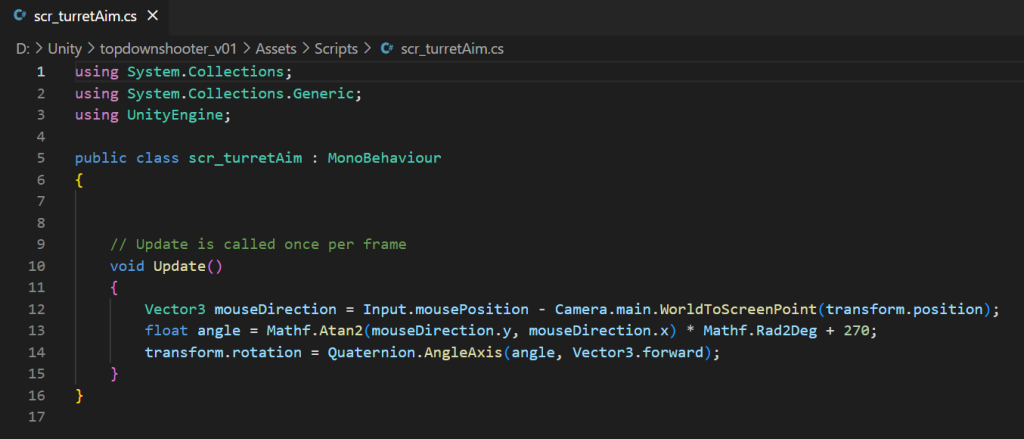
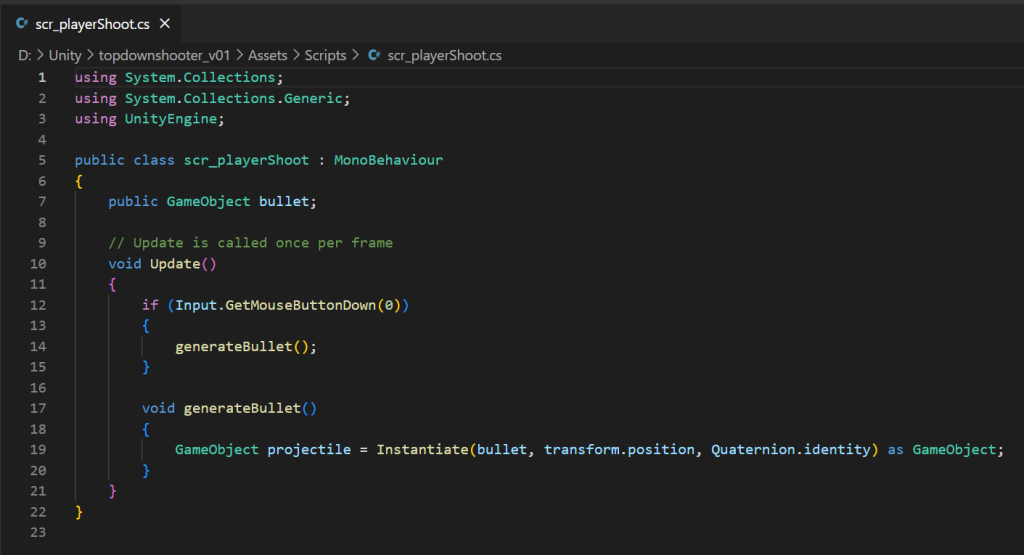
These two scripts are both used in the shooting mechanic, they control how and where the player shoots.
The script, scr_turretAim allows the player character to point in the direction of where it is going the shoot using rotation of the game object and the location of the player’s cursor, which it gathers in the update function before altering the rotation of the space ship.
The other script, scr_playerShoot allows the player to spawn a bullet projectile from the Player game object’s bullet location whenever the mouse button is clicked. This projectile is then identified as a game object within the hierarchy. However this bullet isn’t able to move yet which is what the next script is for.
This next script is called scr_playerBullet.
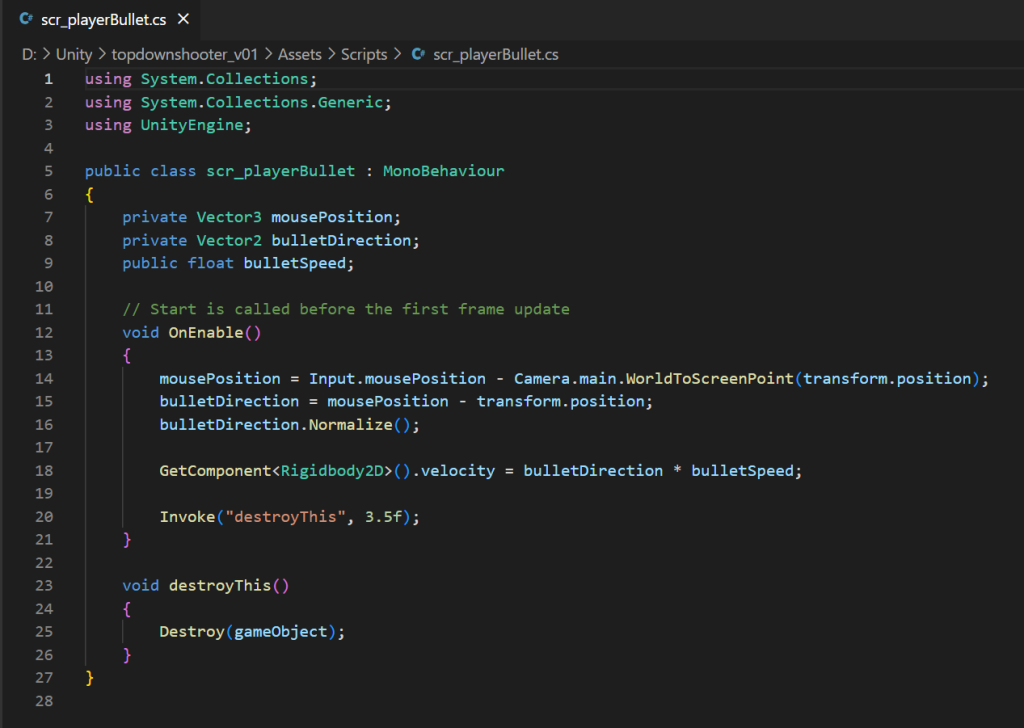
The first purpose of this script is to determine the speed of the bullet from when it has been spawned by the player. This is done through the inspector menu of the bullet prefab. This script also ensures that the bullet is moving in the correct direction from when it is generated and makes sure the bullet is destroyed after some time so prevent poor performance due to all the bullet clones. The bullet is destroyed via a 3.5 second timer from when it is generated since that’s enough time for the bullet to move off screen.
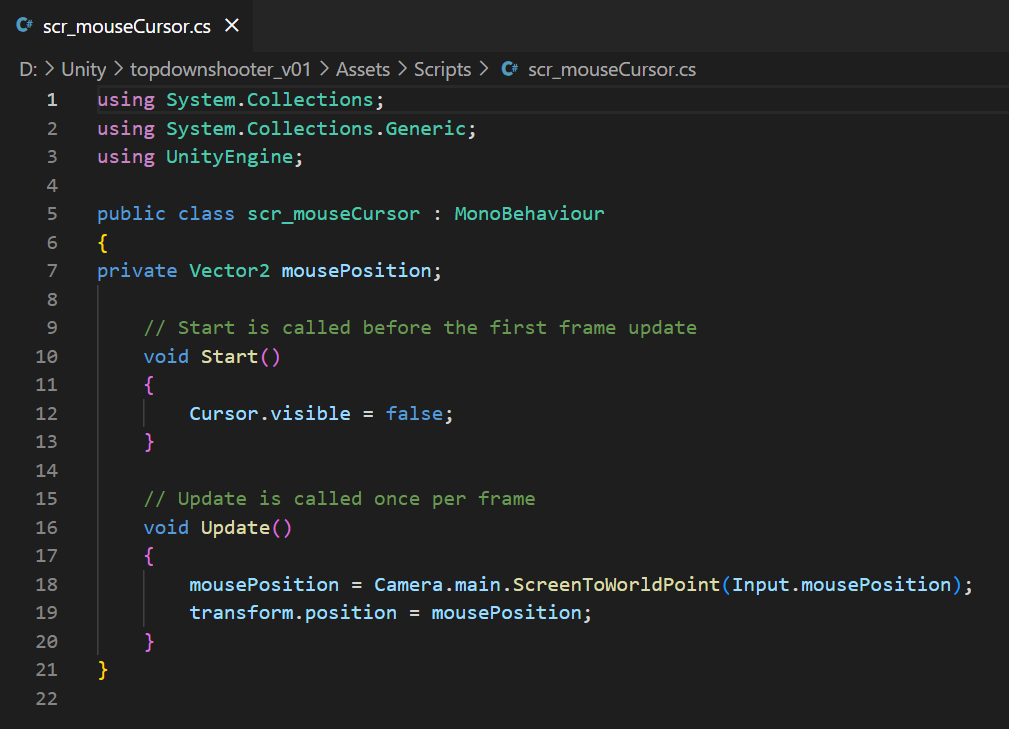
Nextly, the scr_reticule script allows the player to move the reticule game object across the screen with their mouse automatically. The script also disables the viability of the mouse cursor for a better visual experience when playing the game.
The next script is the first script that has relevance to the enemy prefabs in the game. This script is called scr_enemy.
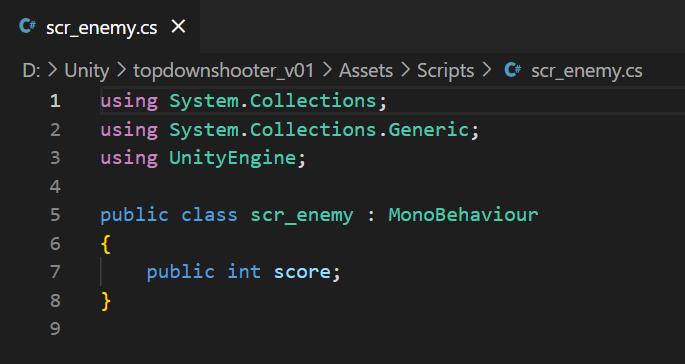
This script is very small, but it is what allows the enemies in the game to have assigned score. This means that this script will be referenced in upcoming scripts to give the player points every time an enemy is killed. The amount of points received by the player is different for each enemy prefab destroyed.
The seventh script used for my prototype is the script, scr_spawnEnemy which is the largest script that was involved in the making of the game.
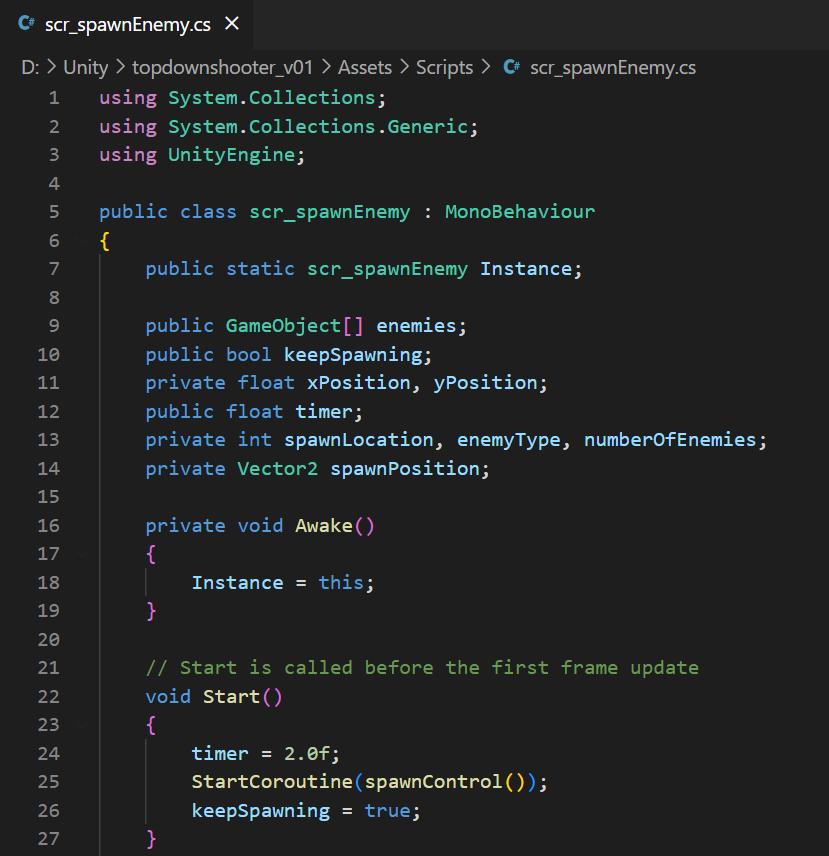
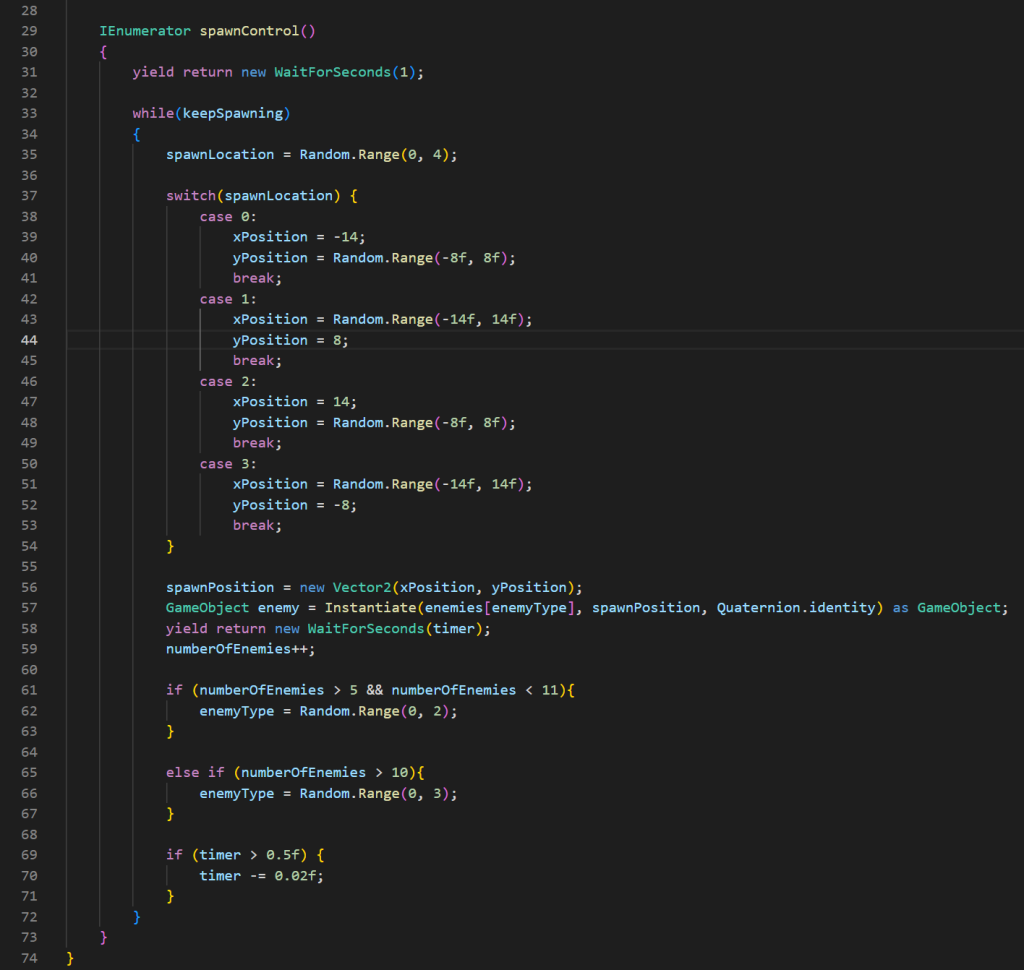
One of the first thing this script does is states all of the available locations where the enemies can spawn in the game, which is done with the switch function on the second image. The script then spawns one of the enemy prefabs which is determined by how many enemies there currently are in the game. If there’s more than ten enemies it introduces the fastest prefab enemy2 into the possibility of spawning.
The script has a timer that gets shorter every time an enemy spawns until it reaches the minimum of 0.5 seconds which is the time between enemy spawns is the smallest. This is so that the game gets more difficult over time.
The next script in the game is scr_enemyMovement which like many of the other scripts is a clear essential part of the game.
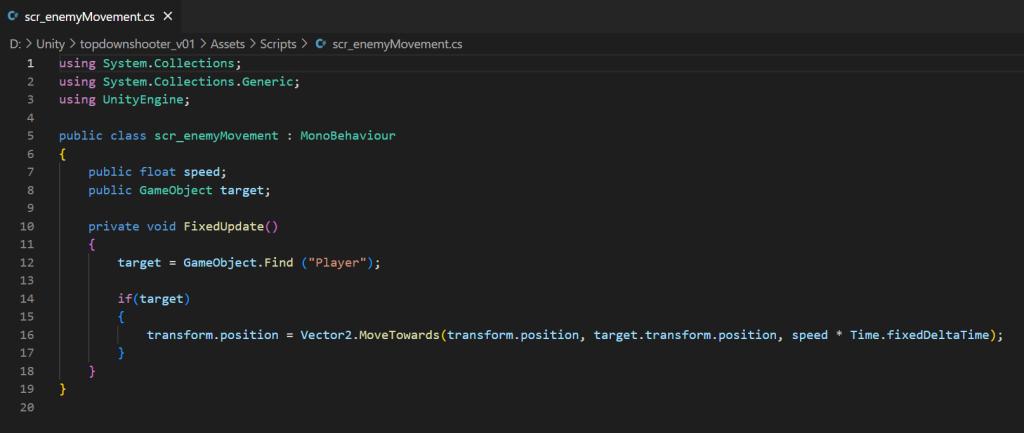
This script allows the enemy sprites to move towards the player once they have spawned since without this script the enemies would just stay at the location where they have been spawned and then I wouldn’t have a game. It does this by finding the player character game object and then uses the Move Towards function to move the enemy to it’s target which has been set as the player when it is enabled. The velocity is changeable in the inspector menu for each respective enemy prefab to have some variety in the game.
Nextly, there is the scr_enemyCollision script which is linked to the shooting and death features of the game.
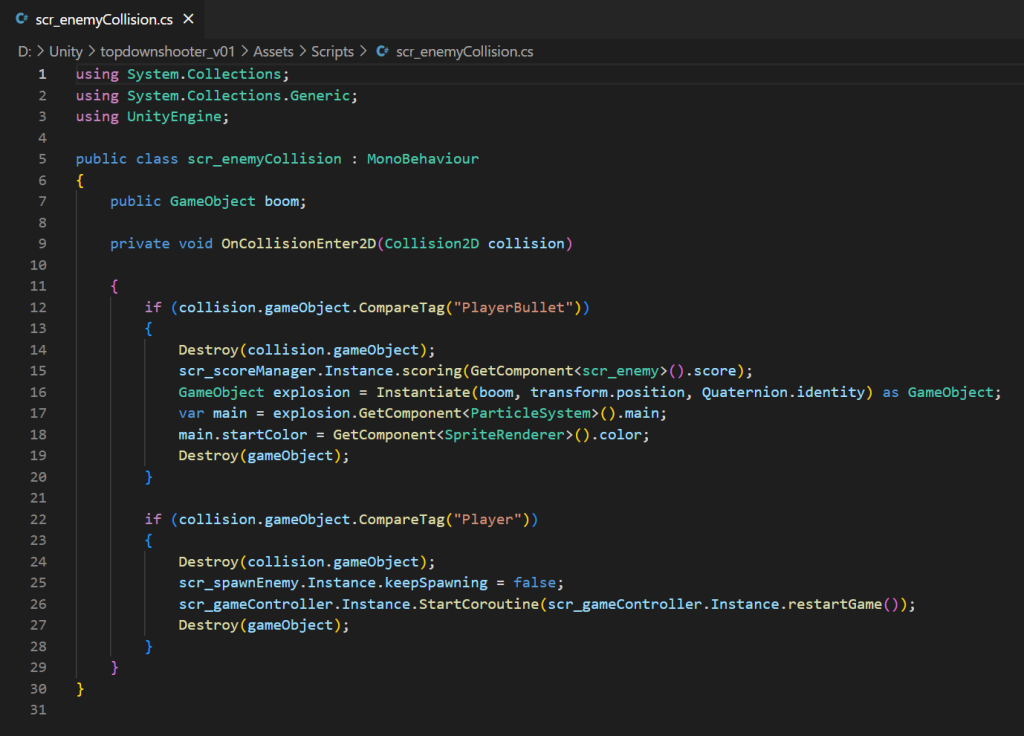
What this script does is that it simulates all of the collisions of the enemy prefabs. This would be the collisions between the enemy and the player and bullets which also tells how the game objects should react when they collide.
The script mentions the function “collision.gameObject. CompareTag(“PlayerBullet”)”. This means the function will start once the enemy meets the bullet object. What it says will happen is the bullet will be destroyed, the enemy’s assigned score will be added to the score counter, the object will instantiate an explosion where the enemy was which will be the same colour as the enemy on the sprite render component and lastly the enemy will be destroyed. All of these actions will happen within a split second.
Next the enemy will begin the function “collision.gameObject .CompareTag(“Player”)”. This means that the function will begin when the enemy reaches the player character. The function will destroy the player game object, any more enemies from spawning, begin the function restartGame for another script that I’ll talk about soon and lastly will destroy the enemy.
It’s essential that the enemy is destroyed last. This is because the script will not conduct any of the other lines of code after destroy because the script no longer exists in the game world. So if I had the enemy destroyed before it’s supposed to explode, the explosion won’t happen.
The tenth script used for Asteroids is scr_scoreManager.
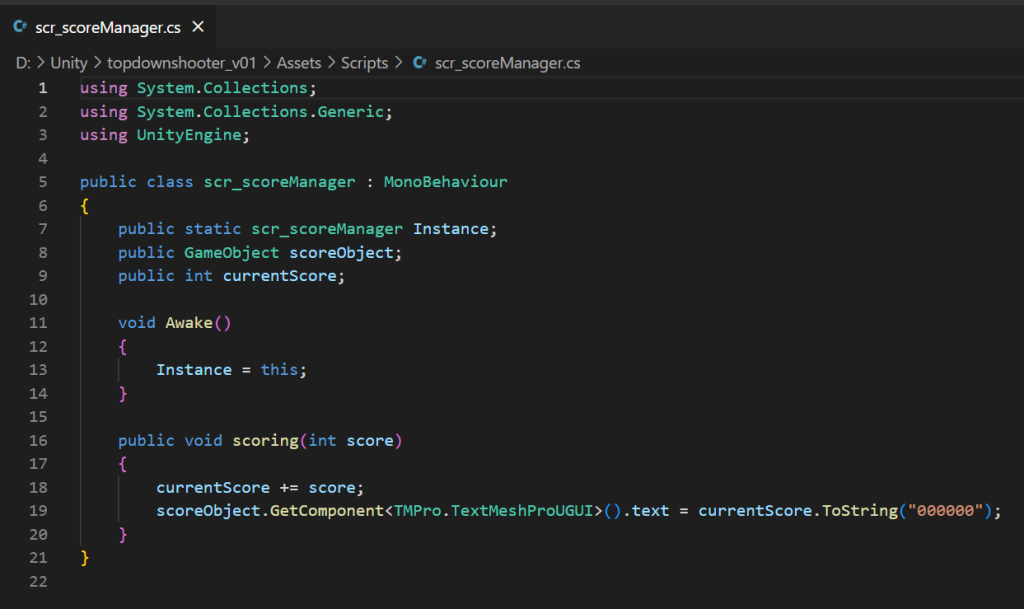
This script is in charge on keeping record of the player’s score and will add the enemy’s score value to the total every time the player kills the enemy, meaning that some enemies will give more points than others and this script will process that score to add it to the the previous total.
The final script of the prototype is scr_gameContoller.
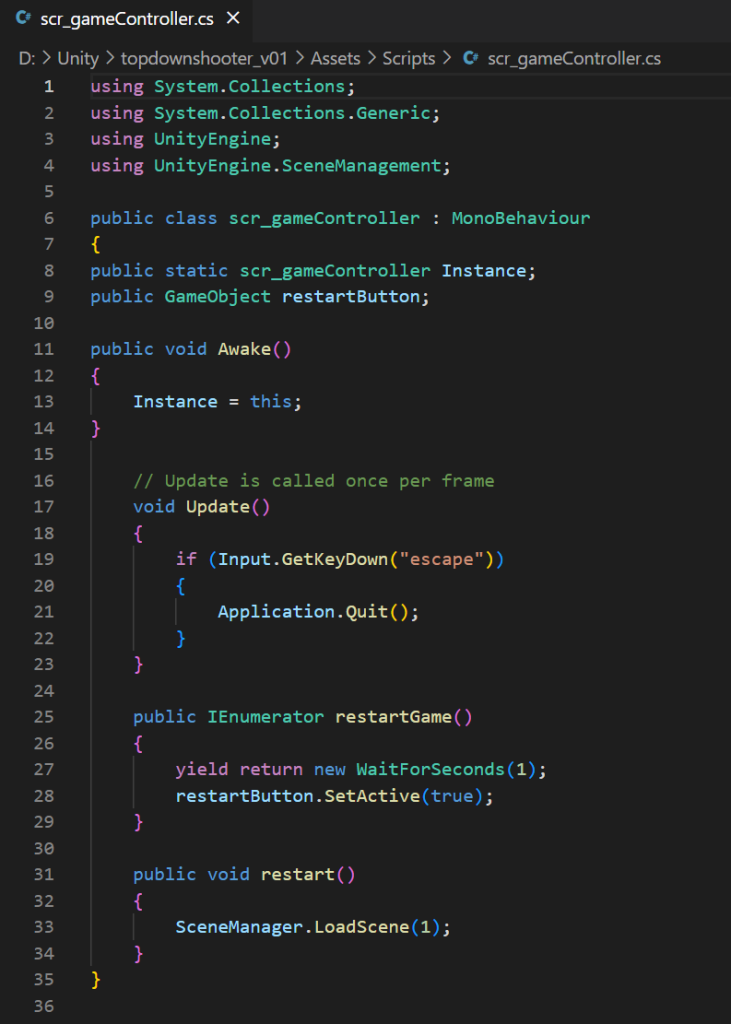
This script is attached to the gameContoller game object which is used as a part of the game which is always present. This is because not all of the game objects are always present meaning that a lot of functions that don’t fit in any of the other scripts are implemented here and on the object.
This script has three functions. The first is to stop the game permanently when the escape key is pressed on the player’s keyboard. This is this prototype’s form of a close game button for when the player is finished playing.
The second function is the restartGame iEnumerator function which activates the restartButton game object after one second the function is activated. This function is activated once the player is collided with an enemy and the function is referenced in the scr_enemyCollision script at the end of line 26.
The final function is what resets the game after the restart button is clicked by the player which reloads the Main Game scene which effectively lets the player start over after dying instead of needing to reload the page, making a better gameplay experience and enhances the game’s efficiency.
Typography
For typography, there aren’t many fonts that I used from dafont.com with in this prototype. This is because the text UI game object I had selected for most of my text boxes did not support implemented fonts that I tried to add. This means that the game objects, scoreText, restartMessage and Instructions (from main menu) have the default Liberation Sans font used instead of the preferable most aesthetic options from dafont.com.
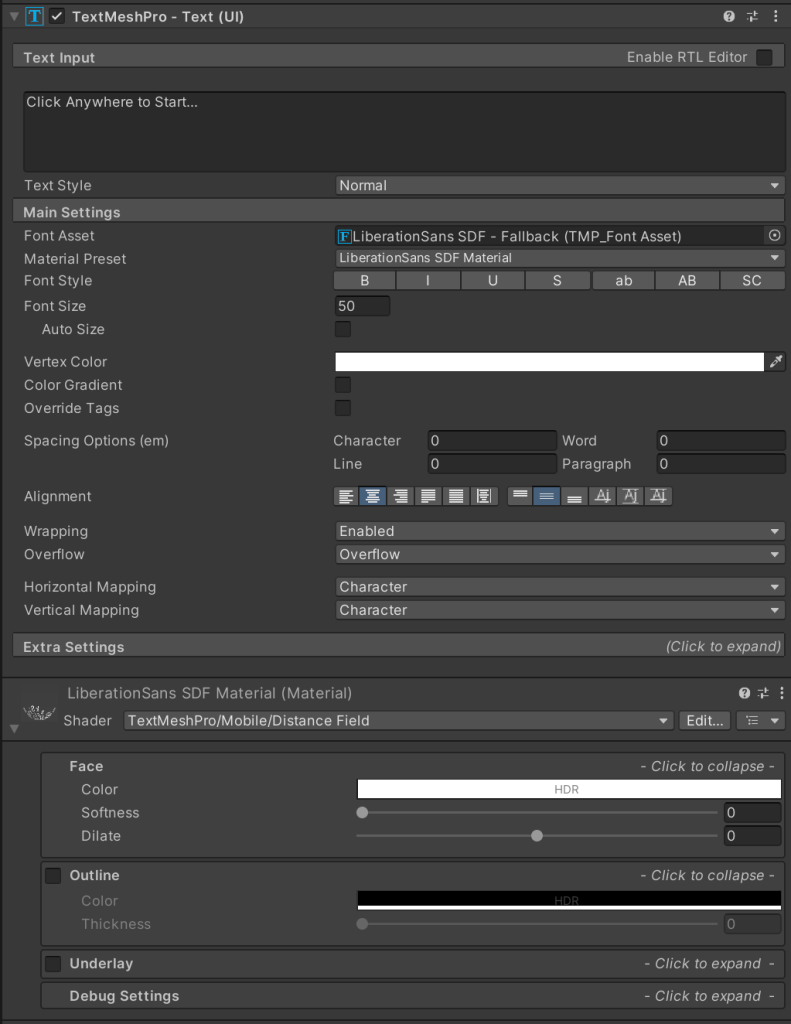
One of my text game objects do however have compatibility with custom fonts since it has a simple text component instead of the TextMeshPro text the other UI use.
The previously mentioned text uses the font Gamerock by Din Studio which was chosen as it is aesthetically pleasing when put alongside the theme of the game prototype.
Game Sprites
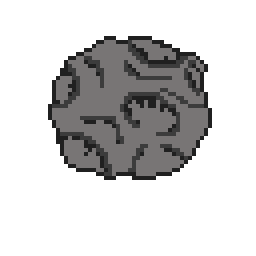
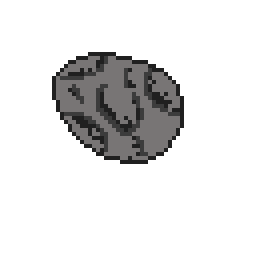
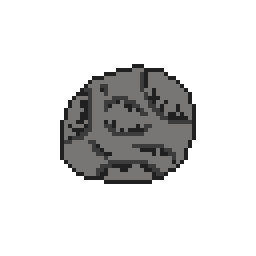
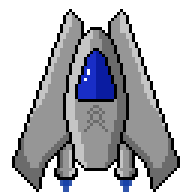
All of these sprites used in my prototype were made using Adobe Photoshop and were exported to PNG to be implemented into the final game.
The asteroid sprites are modified versions of a reference I used when trying to replicate other sprites so that I have good looking assets for the game. I took note of the shading and drew some freehand circles using Photoshop and then made some craters in the asteroids. I made the inside of the craters have some shadow at the outer edge and I believe that the end result is convincing to pose as asteroids at the end of the project.
When making the spaceship, I had also referenced another sprite by bevouliin on Dribble. I decided to make it pixel art like my asteroids and made some other changes like removing the guns, adding flames coming from the thrusters, an alien symbol on the sprite’s centre and making the window blue instead of the original red. This reference image can be found here.
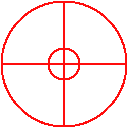
The reticule game object is used to aim at the enemies within the game and follows the player’s cursor. The sprite used for it didn’t take a long time to create as I decided to rush it. The end result came out decent, therefore I decided not the change it near the end of the project. The sprite was made using the line and circle tools within the Photoshop application.
What I Learned…
When working of this prototype I learned how to randomise the spawning of the different types of enemies that can spawn. This was when making the code that spawns harder enemies as the game progresses which can be used for future projects with an arcade theme like this prototype.
The second thing I have learned when making the prototype is the importance of tags for game objects and how to reference them in c# scripts. This is a good thing to know because it makes it easier to have game objects react to each other depending on their tag such as enemy and player. This was used in the scr_enemyCollision script where it has a function to destroy itself and the collided object if that object has the Player tag.
The last thing I learned was how to implement a more in-depth movement system for the player. This was done in Asteroids by allowing the player to move both vertically and horizontally, and therefore also diagonally when both used at the same time. This also includes the ability for the player to rotate and point at a specific position, such as towards the game’s reticule in this prototype.
What I would change/add…
One thing I would change about this prototype is changing the name of the game. This is because I unintentionally and directly associated my game with Atari’s Asteroids which takes away some of this prototype’s association to it’s respective uniqueness and it’s own characteristics compared to other top down shooters.
The second thing I would add is a sound effect for when each enemy is destroyed by the player. I tried to do this with a audio file that’s still in FMod’s bank but it didn’t fit well with the overall game, therefore the file wasn’t used in the end. The explosion sound effect that I would like would have to be similar to one’s used in older arcade games to matchthe already implemented select and laser sound effects.
Lastly, given the time I would have liked to change the text boxes within the game that use TextMeshPro. This is because this UI element doesn’t allow custom fonts from dafont.com, meaning if I had it changed to legacy UI, I would be able to enhance the aesthetic of the text to fit the theme of the game.